Resources:
- Gorails - Deploy Ruby On Rails on Ubuntu 14.04 Trusty Tahr
- How-to-deploy-a-rails-app-with-passenger-and-nginx-on-ubuntu-14-04
- Digital Ocean Tutorial Series
- Digitalocean - setting-up-your-server
SERVER
Initial Server Setup with Ubuntu 14.04
adduser demo
gpasswd -a widyo sudo
local$ ssh-copy-id widyo@SERVER_IP_ADDRESS
local$ cat ~/.ssh/id_rsa.pub
Access server with root@...
su - widyo
Create directory for ssh
mkdir .ssh
chmod 700 .ssh
open a file in .ssh called authorized_keys with a text editor
nano .ssh/authorized_keys
Now restrict the permissions of the authorized_keys file with this command:
chmod 600 .ssh/authorized_keys
Type this command once to return to the root user:
exit
Now you may SSH login as your new user, using the private key as authentication.
Deploy a Rails App with Passenger and Nginx on Ubuntu 14.04
Do it in user (not in root)
$ sudo su widyo

$ pwd

-> home/widyo
sudo apt-get update
Install some dependencies
sudo apt-get install build-essential libssl-dev libyaml-dev libreadline-dev openssl curl git-core zlib1g-dev bison libxml2-dev libxslt1-dev libcurl4-openssl-dev nodejs libsqlite3-dev sqlite3
Create a temporary folder for the Ruby source files:
mkdir ~/ruby
Move to the new folder:
cd ~/ruby
Download the latest stable Ruby source code from Download Ruby
Current latest 2.4.0

wget http://cache.ruby-lang.org/pub/ruby/2.4/ruby-2.4.0.tar.gz
Decompress the downloaded file:
tar -xzf ruby-2.4.0.tar.gz
Select the extracted directory:
cd ruby-2.4.0
Run the configure script. This will take some time as it checks for dependencies and creates a new Makefile, which will contain steps that need to be taken to compile the code:
./configure
Run the make utility which will use the Makefile to build the executable program. This step can take a bit longer:
make
Now, run the same command with the install parameter. It will try to copy the compiled binaries to the /usr/local/bin folder. This step requires root access to write to this directory. It will also take a bit of time:
sudo make install
Ruby should now be installed on the system. We can check it with the following command, which should print the Ruby version:
ruby -v
Finally, we can delete the temporary folder:
rm -rf ~/ruby
First, install a PGP key:
sudo apt-key adv --keyserver keyserver.ubuntu.com --recv-keys 561F9B9CAC40B2F7
......
- LOCAL : CREATE APP
rails new appname -d mysql or
rails new appname -d postgresql

rails s

FATAL: database "_development" does not exist
Setup database:
development:
  <<: *default
  host: localhost
  username: xxx
  password: xxx
  database: xxx_development

rake db:create
rake db:migrate
- REMOTE : CREATE BARE REPOSITORY
> access ssh
> cd repo
> git init --bare --shared reponame.git
- LOCAL > DO GIT INIT
git init
git status
git ignored > ignore /config/database.yml
git add .
git commit
git push github or push to private server
- LOCAL > ADD GIT REMOTE
example : $ git remote add deploy dyo@widyobumi.com:/home/dyo/repo/reponame.git
- LOCAL > GIT PUSH
$ git push deploy master
- REMOTE > GIT CLONE
$ cd to/sites

use this: sites$ git clone /home/myname/repo/reponame.git
For Apache2 server SETUP continue here https://www.digitalocean.com/community/tutorials/how-to-deploy-a-rails-app-with-passenger-and-apache-on-ubuntu-14-04
we need to create a virtual host file for our project. We'll do this by copying the default Apache virtual host:
sudo cp /etc/apache2/sites-available/000-default.conf /etc/apache2/sites-available/nameapp.conf
Open the config file
sudo nano /etc/apache2/sites-available/testapp.conf
Edit it or replace the existing contents so your final result matches the file shown below. Changes you need to make are highlighted in red. Remember to use your own domain name, and the correct path to your Rails app:
just do copas this !
<VirtualHost *:80>
    ServerName example.com
    ServerAlias www.example.com
    ServerAdmin webmaster@localhost
    DocumentRoot /home/rails/testapp/public
    RailsEnv development
    ErrorLog ${APACHE_LOG_DIR}/error.log
    CustomLog ${APACHE_LOG_DIR}/access.log combined
    <Directory "/home/rails/testapp/public">
        Options FollowSymLinks
        Require all granted
    </Directory>
</VirtualHost>
Disable the default site, enable your new site, and restart Apache:
sudo a2dissite 000-default
sudo a2ensite testapp
sudo service apache2 restart
Go to the web --> sites/theWeb
$ bundle install
$ rake db:create
$ rake db:migrate
Incomplete response received from application
Solution:
copy paste this for virtual host:

<VirtualHost *:80>
    ServerName example.com
    ServerAlias www.example.com
    ServerAdmin webmaster@localhost
    DocumentRoot /home/rails/testapp/public
    RailsEnv development
    ErrorLog ${APACHE_LOG_DIR}/error.log
    CustomLog ${APACHE_LOG_DIR}/access.log combined
    <Directory "/home/rails/testapp/public">
        Options FollowSymLinks
        Require all granted
    </Directory>
</VirtualHost>
For Multy Domain
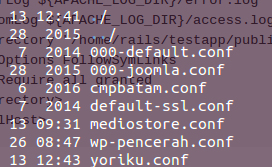
Look for mediostore and yoriku is same web dont forget to below after add new file:
sudo a2ensite yoriku
sudo service apache2 restart
- SETUP sites-available for NGINX Server
> cd /etc/nginx/sites-available
> touch sitename
> and write as bellow:

    server {
    server_name codemedio.tk;
    passenger_enabled on;
    passenger_app_env development;
    root /home/dyo/sites/codemedio/public;
    }
- CREATE SYMLINK
Create a symlink for that above:
$ sudo ln -s /etc/nginx/sites-available/codemedio /etc/nginx/sites-enabled/codemedio
Restart Nginx:
sudo nginx -s reload or
sudo service nginx restart
- REMOTE > SETUP DOMAIN at DOMAIN SERVER
- SETUP NAME SERVER at DOMAIN SERVER
ns1.digitalocean.com
ns2.digitalocean.com
ns3.digitalocean.com
- REMOTE > ADD Domain at DIGITIAL OCEAN
- REMOTE > SETUP the DATABASE
- REMOTE > RUN bundle install
- REMOTE > rake db:create
- REMOTE > rake db:migrate
Web application could not be started
Could not find a JavaScript runtime. See https://github.com/rails/execjs for a list of available runtimes. (ExecJS::RuntimeUnavailable)
solution:
go to activate >> gem 'therubyracer', platforms: :ruby

$ bundle install
There was an error while trying to load the gem 'uglifier'. (Bundler::GemRequireError)
/usr/local/lib/ruby/gems/2.3.0/gems/bundler-1.11.2/lib/bundler/runtime.rb:80:in `rescue in block (2 levels) in  require'
solution:
go to activate >> gem 'therubyracer', platforms: :ruby
Another error: There was an error while trying to load the gem 'uglifier'. (Bundler::GemRequireError)
Solution:
sudo apt-get install nodejs
PG::InvalidParameterValue: ERROR:  new encoding (UTF8) is incompatible with the encoding of the template database (SQL_ASCII)
HINT:  Use the same encoding as in the template database, or use template0 as template.
Solution: https://gist.github.com/amolkhanorkar/8706915
Steps resolved the problem:

* First, we need to drop template1. Templates can’t be dropped, so we first modify it so t’s an ordinary database:

    UPDATE pg_database SET datistemplate = FALSE WHERE datname = 'template1';

* Now we can drop it:

    DROP DATABASE template1;

* Now its time to create database from template0, with a new default encoding:

    CREATE DATABASE template1 WITH TEMPLATE = template0 ENCODING = 'UNICODE';

* Now modify template1 so it’s actually a template:

    UPDATE pg_database SET datistemplate = TRUE WHERE datname = 'template1';

* Now switch to template1 and VACUUM FREEZE the template:

    \c template1

    VACUUM FREEZE;
Problem should be resolved :)
Gem::LoadError: You have already activated rake 10.5.0, but your Gemfile requires rake 10.4.2. Prepending `bundle exec` to your command may solve this.
Solution:
sudo bundle exec rake db:create

sudo bundle exec rake db:migrate
Errno::EACCES in Home#landing

Permission denied @ dir_s_mkdir - /home/dyo/sites/cmpbatam/tmp

<%= stylesheet_link_tag    'application', media: 'all', 'data-turbolinks-track' => true %>
Solution:
First one must create the tmp directory, then give it the necessary permissions. This can be done with the following code:
sudo mkdir tmp
sudo chmod 777 tmp
Internal Server Error

The server encountered an internal error or misconfiguration and was unable to complete your request.

Please contact the server administrator at webmaster@localhost to inform them of the time this error occurred, and the actions you performed just before this error.

More information about this error may be available in the server error log.

Apache/2.4.7 (Ubuntu) Server at grafikatritunggallestari.co.id Port 80
Solution:
Read this:
how-to-troubleshoot-common-site-issues-on-a-linux-server
Forbidden

You don't have permission to access / on this server.
Apache/2.4.7 (Ubuntu) Server at mediosoft.com Port 80
Solution
Setelah di clone di folder sites segera di ganti aksesnya:

	sudo chmod 775 home/myname/sites/folder_project