Context engineering is the practice of curating the content that goes into an AI agent’s context window. In Python projects, that may mean pinning your dependency manager in an instruction file, trimming irrelevant history, delegating heavy tasks to subagents, and more.
By the end of this tutorial, you’ll understand that:
- The context window holds everything the agent sees on a single turn, not just your latest prompt.
- Most agent failures come from bad context, not a bad model.
- Bigger context windows don’t fix poor curation—they only delay the symptoms.
- Instruction files like
AGENTS.mdkeep your Python conventions in front of the agent. - Curate, Distill, Delegate, and Externalize are strategies that can help you manage the agent’s context.
Modern AI coding agents, such as Claude Code, Codex CLI, Cursor, Copilot CLI, and Antigravity CLI, work with a fixed-size context window. Once you know what’s in that window and decide what belongs there for the task at hand, you’ll spend less time arguing with your agent and more time shipping quality Python code.
Get Your Cheat Sheet: Click here to download a free PDF with the core techniques for steering AI coding assistants through your own Python codebases.
Take the Quiz: Test your knowledge with our interactive “Context Engineering for Python Codebases” quiz. You’ll receive a score upon completion to help you track your learning progress:
Interactive Quiz
Context Engineering for Python CodebasesBuild a working framework to manage your AI coding agent's context window using four practical strategies for Python projects.
Prerequisites
Before you start learning about context engineering, you should already have:
- Hands-on experience with at least one AI coding agent, such as Claude Code, Codex CLI, Cursor, Copilot CLI, or Antigravity CLI.
- Comfort working from a terminal and editing plain-text configuration files like
.md,.toml, or.yaml. - A basic understanding of large language models (LLMs) and concepts like tokens, prompts, and chat history.
- Working knowledge of Python and its ecosystem.
To learn more about these and other related topics, you can check out the resources in this Real Python learning path:
Learning Path
Python Coding With AI
12 Resources ⋅ Skills: Claude Code, Cursor, Gemini CLI, AI-Assisted Development
You don’t need any prior exposure to context engineering itself. The whole point of this tutorial is to give you a working framework to effectively manage your agent’s context window.
Note: Context engineering is different from prompt engineering. Context engineering manages everything in the context window. Prompt engineering is about crafting individual prompts.
With that distinction in mind, the next section opens up the context window so you can see exactly what’s competing for space on every turn.
Defining Context for AI Coding Agents
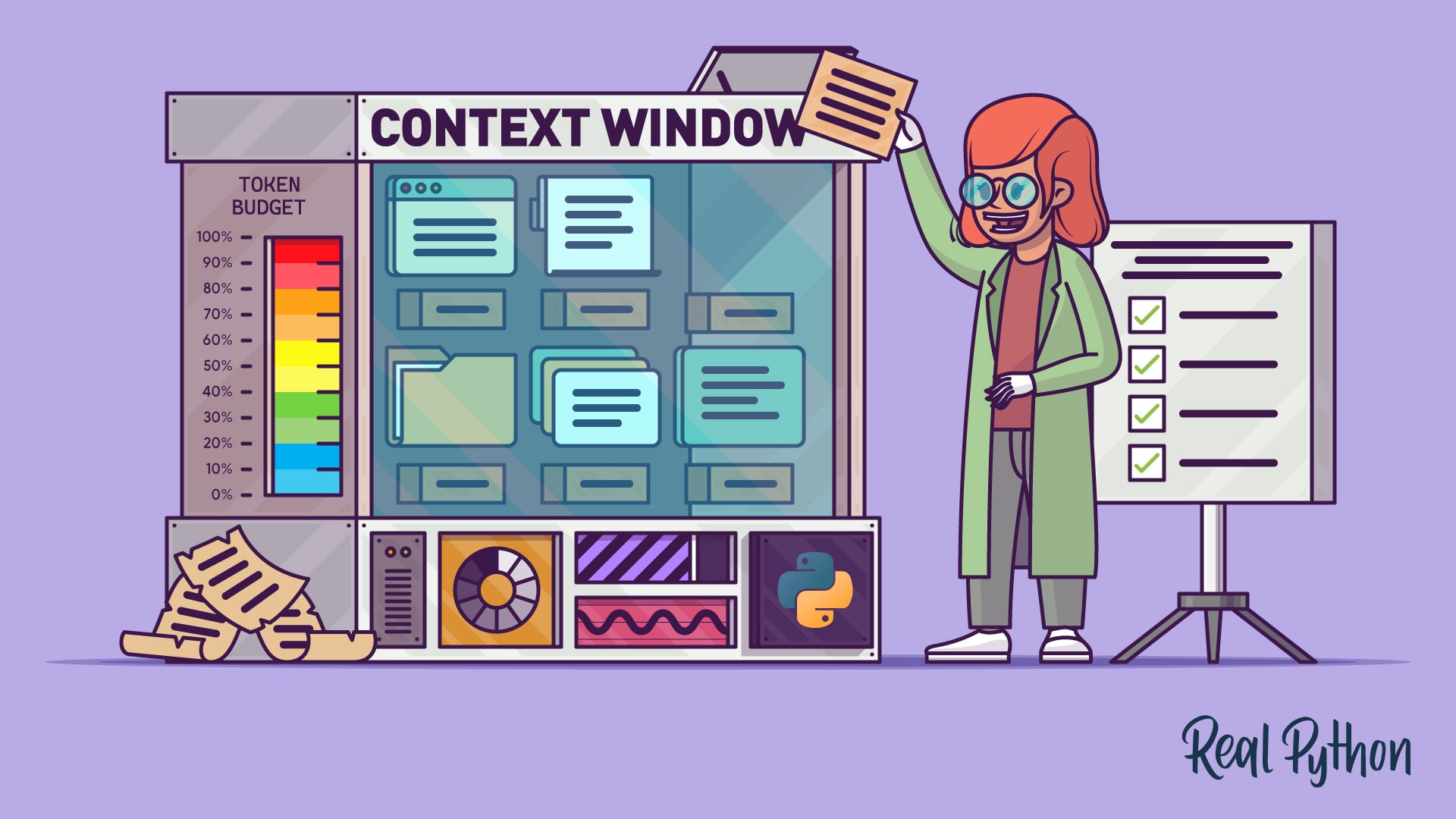
The context window is everything the agent sees on a single turn. Your most recent prompt is only the last item on the list. On any given turn, whenever you write a prompt and press Enter, the agent’s window typically holds the following layers of content:
- System prompt: The agent’s built-in role and rules, typically set by the vendor.
- Instruction files: Files like
AGENTS.md,CLAUDE.md, Cursor rules, or Copilot instructions, auto-loaded into every turn. Skill descriptions also live in this layer. The agent loads a skill’s full body only when it picks the skill for the task. - Tool definitions: Names, short descriptions, and JSON Schema definitions for every tool the agent can call, including MCP server tools and, in some frameworks, any subagent the main agent can delegate to.
- Opened files: Source files, configuration files, or docs the agent has read in this session.
- Search results: Results from web searches, internal RAG queries, or file searches.
- Conversation history: Earlier prompts, replies, and tool outputs from the same session.
- Your new prompt: The prompt you just typed, plus any attachments.
In practice, all of this content lives inside the context window. The layers are listed separately here to clarify what’s consuming your context budget. The diagram below shows how all seven layers come together as the context window the agent reads before producing a reply:

For a more concrete example, below is a snapshot of what a single turn in a Claude Code session might look like:
Context Window
[system prompt]        You are Claude Code, an interactive CLI...
[CLAUDE.md]            Use uv. Python 3.14. Run tests with uv run pytest -q.
[tool catalog]         Read, Edit, Bash, Grep, WebFetch, ...
[opened file]          src/api/users.py  (340 lines)
[history turn 1]       User: Add an email validator to the User class.
[history turn 2]       Assistant: <edits users.py>
[tool result turn 2]   Bash: uv run pytest -q -> 3 failed
[history turn 3]       User: Fix the failing tests.
Here are three properties of the context window that matter for everything that follows:
- Fixed: The context window can only hold a certain number of tokens. Everything above that number competes for the same budget.
- Position-sensitive: Items at the top and bottom of the window tend to get more attention from the model than items in the middle. Long conversation histories may push important rules into the dead zone in the middle of the context window.
- Non-persistent: Most of the context evaporates when you close the session. What survives is whatever you write to disk or a memory store.
Once you can see the context window as a layered payload that you control, you realize that context engineering is mostly about deciding what you put in each layer. Doing a bad job of managing the context window can lead to poor-quality responses or actions from your favorite AI agent.
Diagnosing Common Context-Engineering Failures
When an agent misbehaves, your first instinct might be to blame the model behind it. Most of the time, the model is fine, but the context isn’t. Here are the failures you’ll recognize from your own sessions:
-
The agent forgot your rules. You said “use
uv” thirty turns ago, and now the agent ranpip installagain. Older context fades as the window fills, and your earliest instructions get crowded out. Apply the Distill strategy to reduce noise so the rules stay clear, or the Externalize strategy to save the rule in a persistent notes or memory file the agent re-reads on every run. -
The agent quotes its own hallucination. The agent invented
pandas.read_parquet_lazy()a few turns back and is now calling it again. A wrong answer becomes fact if it stays in the window. Apply the Distill strategy to rewind past the bad turn. -
The agent loops. It keeps re-running the same failing
pytestcommand instead of stepping back to plan. Recent failures pull harder than older instructions. Apply the Delegate strategy to hand the retry to a subagent with a clean window. -
The agent picks the wrong tool. Twelve MCP tools are loaded, and it grabs
list_users()when you wantedlist_accounts(). Too many similar options crowd out the right one. Apply the Curate strategy to load only the MCP servers this task needs. -
The agent gets conflicting signals.
AGENTS.mdsaysuv, but aMakefileline sayspip. Two pieces of context disagree, and the agent picks one randomly. Apply the Curate strategy to keep a single source of truth in your instructions.
A larger context window doesn’t solve these issues and can make some of them worse. It simply fills more slowly without deciding what matters. The real fix involves curating what goes into the window. Putting that fix into practice is what you’ll do for the rest of this tutorial.
Each failure above maps to one of the four context-engineering strategies: Curate, Distill, Delegate, and Externalize. Together, they make up the framework you’ll learn about in the next section.
Exploring Context-Management Strategies
Most context-engineering techniques map to four strategies, each defined by a single question you can ask before any agent task. Instruction files, MCP servers, skills, subagents, and the rest all fit into one of these four:
| Strategy | Question | Possible Actions |
|---|---|---|
| Curate | What should I put into the window for this turn? | AGENTS.md, file search, RAG, skill descriptions, MCP servers |
| Distill | What can I shrink without losing the point? | Use /compact, summarize on demand, drop old tool output, trim stale turns |
| Delegate | What deserves its own separate window? | Subagents, sandboxed code execution |
| Externalize | What should I save outside the window so the agent can pull it back later? | Notes files, plan files, persistent memory |
The diagram below shows how each strategy acts on the context window, with arrows indicating where context flows in, shrinks, branches off, or gets written out:

Each panel maps a single question to a concrete action you can take, and together they cover the full lifecycle of context as an agent works through a task. The next four sections walk through each strategy with practical steps for your Python projects.
Curate: Choose What Goes Into the Context
This context-engineering strategy is where you’ll spend most of your time as a Python developer. The Curate strategy is about deciding exactly what the agent should see to successfully accomplish the task in front of you. Your prompt matters, which is why prompt engineering exists, but the surrounding context matters just as much. The two work together.
The most common place to start is an instruction file. Auto-loaded files like AGENTS.md, CLAUDE.md, Cursor rules, or Copilot instructions get pulled into every turn, so they’re the right home for project-wide conventions.
A short, focused AGENTS.md for a Python service might look like this:
AGENTS.md
- Python version: 3.14. Don't assume newer syntax than that.
- Dependency manager: `uv`. Never use `pip`.
- Tests: `uv run pytest -q`. Add a test for every new function.
- Lint and format: `ruff check` and `ruff format`.
- Type checking: `mypy --strict`. Type-hint all public functions.
- Use Google-style docstrings.
- Don't add new dependencies without asking.
A short AGENTS.md is plenty. Long instruction files can become a context-bloat problem, and the agent tends to ignore any single rule when there are thirty of them.
Beyond instruction files, a few more curation tactics are worth applying:
-
Just-in-time file loading: Let the agent search and open files as it needs them with tools like
grep,glob, and file readers, instead of dumping the whole repo into the prompt up front. The agent’s own searches pull in only the relevant slice. -
Skills: A skill is a description of a workflow that the agent loads only when relevant for a given task. Skills keep the window light when most tasks don’t need all the skills. For example, a refactor skill loads only when the agent detects a refactoring task in your prompt.
-
Retrieval-augmented generation (RAG): For docs, knowledge bases, and large codebases, you can use RAG to pull only the chunks that match the query instead of concatenating entire documents.
-
MCP servers: Each connected MCP server drops its tool catalog, including names, descriptions, and schemas, into the window up front. Deliberately pick the servers to use in the current project. Connecting all of them bloats the catalog and makes the agent worse at picking the right tool for the task.
If you want to see these tactics applied in a real session, Real Python’s Getting Started With Claude Code video course walks through setting up a CLAUDE.md file and shipping a project from start to finish.
As you already know, the context window has limited space, so fill it for the task at hand, not for every possible task.
Distill: Shrink What’s Already in the Window
Long conversations may cover many different topics and fill the context window with both useful and irrelevant information.
The Distill strategy allows you to shrink or trim what’s already in the context so your rules and the relevant decisions don’t get crowded out. You don’t have to wait until you’re at the cap to clean the context window.
Here’s what to reach for when you notice the window is getting cluttered and the agent is losing track of the important details:
-
Summarize on demand: Replace a long back-and-forth with a short recap of decisions and open work. Agents do this automatically when the window fills, but with today’s long context windows, quality degrades well before that point. Trigger compaction yourself at natural break points like finishing a sub-task or switching files. Use Claude Code’s
/compact, Cursor’s/compress, or a similar command with a custom prompt for what to keep. -
Drop old or unneeded tool output: Big tool results like full file dumps, long search results, and verbose tracebacks take up a lot of space and rarely need to be re-read. Ask the agent to summarize or drop earlier tool outputs before pruning the conversation itself.
-
Trim turns that no longer matter: When you’ve moved on to a new feature or switched to a bug fix, older turns about the previous work mostly add noise. Trim them to free up room for more relevant information.
-
Rewind to an earlier turn: Some agents let you jump back and continue from a previous point in the conversation. For example, in Claude Code, you can press Esc twice to open the rewind menu. That’s useful when the recent few turns went sideways and you want to drop them without restarting the whole conversation.
During compaction, the agent itself summarizes the conversation and continues with that summary. Think of every distill technique as a smaller, cheaper compaction you trigger yourself, before you need the expensive one.
Sometimes it’s also necessary to completely restart the context, which you can do with /clear or a similar command, depending on the tool you’re using.
When the agent is lost, the conversation has gone off the rails, or you’re switching to an unrelated task, a fresh start is the way to go. Make sure to save any important information to disk first, since it won’t survive the restart. Check out the Externalize strategy for instructions on how to do this.
Delegate: Split Work Across Separate Context Windows
Sometimes the right approach is to use more than one context window instead of trying to fit everything into just one.
The Delegate strategy consists of assigning a focused task to a subagent with its own clean context window. The subagent works through the task, loads whatever context it needs, and returns a short summary to the main agent. The main window stays lean, and the subagent’s exploration never has to compete for attention with your top-level conversation.
Here are a few common paths that you can follow when delegating to subagents:
-
Subagents for focused tasks: A main agent delegates a job like “Write the test file for
users.py” or “Audit this module for typing gaps” to a subagent. The subagent reads the relevant files, does the work, and returns a concise result. The main agent doesn’t have to see the subagent’s intermediate work, just the final answer. -
Wrappers around noisy tools: When a tool returns more data than the main agent needs, hand the call to a subagent. The subagent processes the response and returns only the relevant slice. This is useful for long file dumps, database queries, raw browser HTML, and similar.
-
Sandboxed code execution: Run code in an isolated sandbox so only the result enters the agent’s window. Intermediate state, prints, and full tracebacks never reach the main context.
If your agent supports subagents, pick one big chunk of your next task and delegate it. For example, you could trigger a subagent for a task like “Read the codebase and summarize the authentication flow.” The main agent then gets a paragraph instead of five hundred lines of source code.
Externalize: Save Context the Agent Can Read Later
The Externalize strategy puts information outside the context window in files that the agent can read on demand. The agent only loads what it needs, when it needs it. This strategy is especially useful for long-running work that requires multiple sessions, since the context you save to disk survives compactions and restarts.
The following actions cover most of what you’ll do here:
-
Plan files: A
plan.mdfile (or similar) on disk survives compaction and fresh sessions. The agent can re-read it on demand to refresh its memory about what you’re working on. -
Notes and scratchpads: The agent jots down decisions, open questions, or a file inventory as it works. A fresh session can pick up where the last one left off by reading the notes back in.
-
Persistent memory: Some agents auto-capture running facts about your project across sessions, like preferred libraries or tricky setup steps. Cursor calls this Memories, separate from its rules. Claude Code calls it auto memory and stores it in a
MEMORY.mdfile, separate fromCLAUDE.md. If your agent has no built-in memory, then use a custom file.
The smallest possible version of this strategy is a one-sentence prompt:
One-shot Externalize prompt
Write a short plan for this task into plan.md before you start,
and then update plan.md after each step.
That’s it! The plan will live on your disk, get versioned with your repo, and survive any number of compactions or sessions.
For longer-running work, treat the scratchpad like a structured note-taking system. Group sections by Decisions, Open Questions, and Next Steps, like in this small example:
plan.md
## Decisions

- Validate email syntax with a regex.
- Verify the domain via DNS.

## Open Questions

Should `validate_email()` live in `users.py` or move to `validators.py`?

## Next Steps

- Add tests for the email validator.
- Work the validator into the `User` class.
This structure makes it easier for the agent to re-read selectively instead of dragging the whole file back in.
Conclusion
Context engineering means making deliberate choices about what fills the context window. You decide what the agent sees and for how long. The four-strategy framework in this tutorial gives you a concrete workflow to apply before you start any non-trivial task on a Python project using an AI-powered agent.
In this tutorial, you’ve learned how to:
- Read the context window as everything the agent sees on a turn
- Diagnose agent failures as bad context, not a bad model
- Recognize that bigger context windows don’t fix poor curation—they only delay the symptoms
- Pin Python conventions in instruction files like
AGENTS.md - Apply the strategies Curate, Distill, Delegate, and Externalize to manage context
With these skills, you can now manage the context window efficiently and get higher-quality code and outputs from large language models in your Python projects.
Get Your Cheat Sheet: Click here to download a free PDF with the core techniques for steering AI coding assistants through your own Python codebases.
Frequently Asked Questions
Now that you have some experience with context engineering in Python, you can use the questions and answers below to check your understanding and recap what you’ve learned.
These FAQs are related to the most important concepts you’ve covered in this tutorial. Click the Show/Hide toggle beside each question to reveal the answer.
Context engineering is the practice of curating what goes into an AI agent’s limited context window on each turn. It covers everything the agent sees alongside your prompt, including instruction files, opened files, tool definitions, and conversation history.
Prompt engineering focuses on writing a single effective instruction. Context engineering manages everything else the agent sees on the same turn, like instruction files, retrieved snippets, tool catalogs, and previous conversation. The two work together, but they operate at different layers.
A typical turn includes the system prompt, instruction files like AGENTS.md, tool definitions, files the agent has opened, search or retrieval results, conversation history, and your latest prompt. All of these share the same fixed token budget.
An AGENTS.md file is a repository-level instruction file that AI coding agents automatically load into the context window. It’s a good home for project conventions like the Python version, the dependency manager, the test command, and style rules. Keep it short to avoid diluting individual rules.
The four strategies are Curate, Distill, Delegate, and Externalize. Curate decides what to put in the window for the current task. Distill shrinks what’s already there. Delegate splits work across separate windows using subagents. Externalize saves information outside the window in files.
Take the Quiz: Test your knowledge with our interactive “Context Engineering for Python Codebases” quiz. You’ll receive a score upon completion to help you track your learning progress:
Interactive Quiz
Context Engineering for Python CodebasesBuild a working framework to manage your AI coding agent's context window using four practical strategies for Python projects.


