PYnative

Python Programming

  • Learn Python
    • Python Tutorials
    • Python Basics
    • Python Interview Q&As
  • Exercises
    • Python Exercises
    • C Programming Exercises
    • C++ Exercises
  • Quizzes
  • Code Editor
    • Online Python Code Editor
    • Online C Compiler
    • Online C++ Compiler
Home » Python Exercises » Python Matplotlib Exercise

Python Matplotlib Exercise

Updated on: March 9, 2021 | 25 Comments

Python Matplotlib Exercise

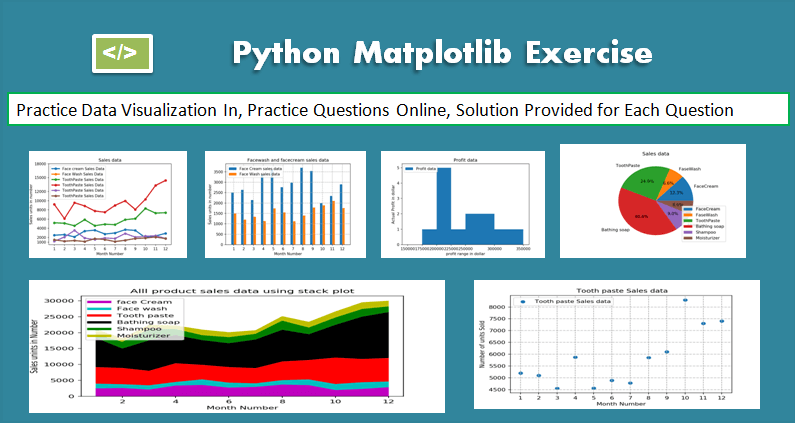
This Matplotlib exercise project helps Python developers learn and practice data visualization using Matplotlib by solving multiple questions and problems.

Matplotlib is a Python 2D plotting library that produces high-quality charts and figures, which helps us visualize extensive data to understand better. Pandas is a handy and useful data-structure tool for analyzing large and complex data.

In this exercise, we are using Pandas and Matplotlib to visualize Company Sales Data.
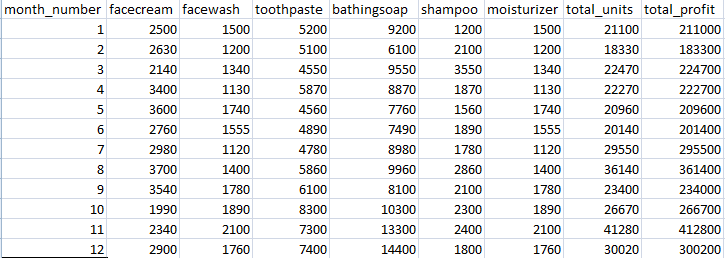
Matplotlib Exercise company sales data

Use the following CSV file for this exercise. Read this file using Pandas or NumPy or using in-built matplotlib function.

company_sales_dataDownload company sales dataset

What included in this Matplotlib Exercise?

This exercise contains ten questions. The solution is provided for each issue. Each question includes a specific Matplotlib topic you need to learn. When you complete each question, you get more familiar with Data data visualization using matplotlib.

Exercise 1: Read Total profit of all months and show it using a line plot

Total profit data provided for each month. Generated line plot must include the following properties: –

  • X label name = Month Number
  • Y label name = Total profit

The line plot graph should look like this.
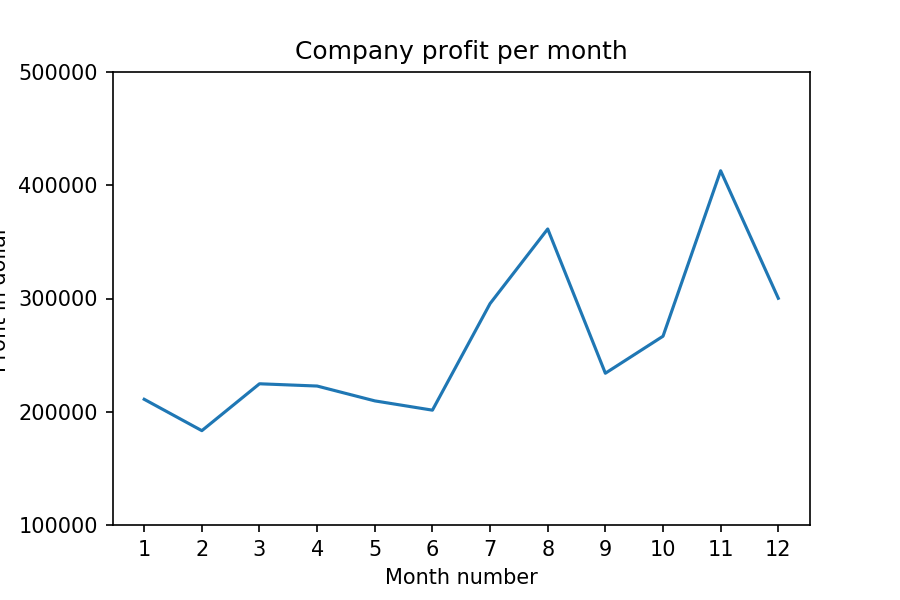
Matplotlib Exercise 1: Read Total profit of all months and show it using a line plot
Show Solution
import pandas as pd
import matplotlib.pyplot as plt  

df = pd.read_csv("D:\\Python\\Articles\\matplotlib\\sales_data.csv")
profitList = df ['total_profit'].tolist()
monthList  = df ['month_number'].tolist()
plt.plot(monthList, profitList, label = 'Month-wise Profit data of last year')
plt.xlabel('Month number')
plt.ylabel('Profit in dollar')
plt.xticks(monthList)
plt.title('Company profit per month')
plt.yticks([100000, 200000, 300000, 400000, 500000])
plt.show()Code language: Python (python)

Exercise 2: Get total profit of all months and show line plot with the following Style properties

Generated line plot must include following Style properties: –

  • Line Style dotted and Line-color should be red
  • Show legend at the lower right location.
  • X label name = Month Number
  • Y label name = Sold units number
  • Add a circle marker.
  • Line marker color as read
  • Line width should be 3

The line plot graph should look like this.
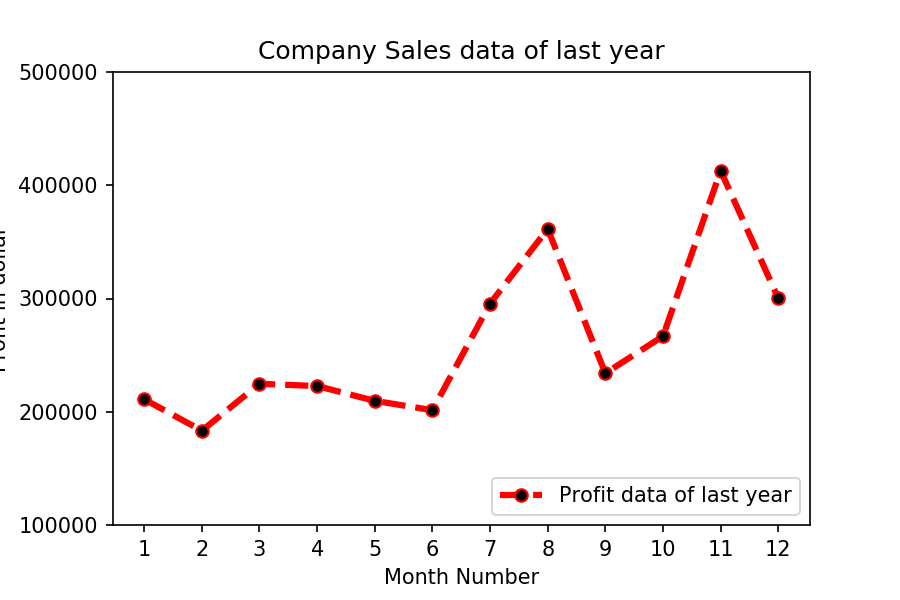
Matplotlib Exercise 2: Get Total profit of all months and show line plot with the following Style properties
Show Solution
import pandas as pd
import matplotlib.pyplot as plt  

df = pd.read_csv("D:\\Python\\Articles\\matplotlib\\sales_data.csv")
profitList = df ['total_profit'].tolist()
monthList  = df ['month_number'].tolist()

plt.plot(monthList, profitList, label = 'Profit data of last year', 
      color='r', marker='o', markerfacecolor='k', 
      linestyle='--', linewidth=3)
      
plt.xlabel('Month Number')
plt.ylabel('Profit in dollar')
plt.legend(loc='lower right')
plt.title('Company Sales data of last year')
plt.xticks(monthList)
plt.yticks([100000, 200000, 300000, 400000, 500000])
plt.show()Code language: Python (python)

Exercise 3: Read all product sales data and show it  using a multiline plot

Display the number of units sold per month for each product using multiline plots. (i.e., Separate Plotline for each product ).

The graph should look like this.
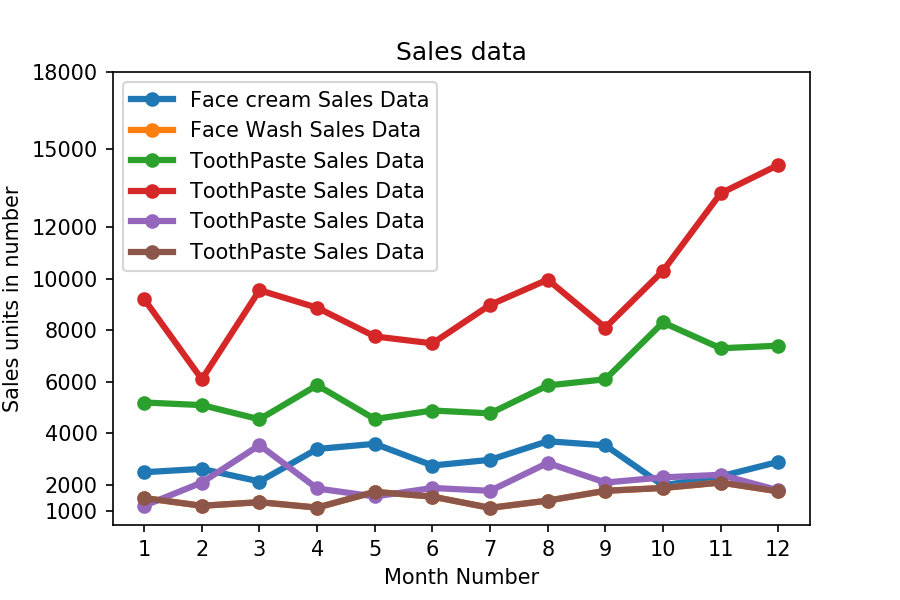
Matplotlib Exercise 3: Read all product sales data and show it  using a multiline plot
Show Solution
import pandas as pd
import matplotlib.pyplot as plt  

df = pd.read_csv("D:\\Python\\Articles\\matplotlib\\sales_data.csv")
monthList  = df ['month_number'].tolist()
faceCremSalesData   = df ['facecream'].tolist()
faceWashSalesData   = df ['facewash'].tolist()
toothPasteSalesData = df ['toothpaste'].tolist()
bathingsoapSalesData   = df ['bathingsoap'].tolist()
shampooSalesData   = df ['shampoo'].tolist()
moisturizerSalesData = df ['moisturizer'].tolist()

plt.plot(monthList, faceCremSalesData,   label = 'Face cream Sales Data', marker='o', linewidth=3)
plt.plot(monthList, faceWashSalesData,   label = 'Face Wash Sales Data',  marker='o', linewidth=3)
plt.plot(monthList, toothPasteSalesData, label = 'ToothPaste Sales Data', marker='o', linewidth=3)
plt.plot(monthList, bathingsoapSalesData, label = 'ToothPaste Sales Data', marker='o', linewidth=3)
plt.plot(monthList, shampooSalesData, label = 'ToothPaste Sales Data', marker='o', linewidth=3)
plt.plot(monthList, moisturizerSalesData, label = 'ToothPaste Sales Data', marker='o', linewidth=3)

plt.xlabel('Month Number')
plt.ylabel('Sales units in number')
plt.legend(loc='upper left')
plt.xticks(monthList)
plt.yticks([1000, 2000, 4000, 6000, 8000, 10000, 12000, 15000, 18000])
plt.title('Sales data')
plt.show()Code language: Python (python)

Exercise 4: Read toothpaste sales data of each month and show it using a scatter plot

Also, add a grid in the plot. gridline style should “–“.

The scatter plot should look like this.
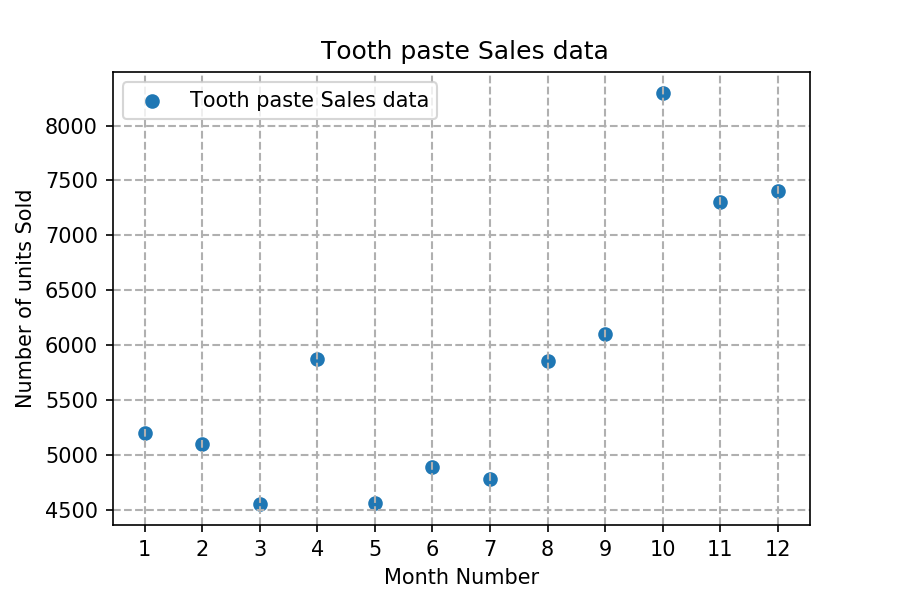
Matplotlib Exercise 4: Read toothpaste sales data of each month and show it using a scatter plot
Show Solution
import pandas as pd
import matplotlib.pyplot as plt  

df = pd.read_csv("D:\\Python\\Articles\\matplotlib\\sales_data.csv")
monthList  = df ['month_number'].tolist()
toothPasteSalesData = df ['toothpaste'].tolist()
plt.scatter(monthList, toothPasteSalesData, label = 'Tooth paste Sales data')
plt.xlabel('Month Number')
plt.ylabel('Number of units Sold')
plt.legend(loc='upper left')
plt.title(' Tooth paste Sales data')
plt.xticks(monthList)
plt.grid(True, linewidth= 1, linestyle="--")
plt.show()Code language: Python (python)

Exercise 5: Read face cream and facewash product sales data and show it using the bar chart

The bar chart should display the number of units sold per month for each product. Add a separate bar for each product in the same chart.

The bar chart should look like this.
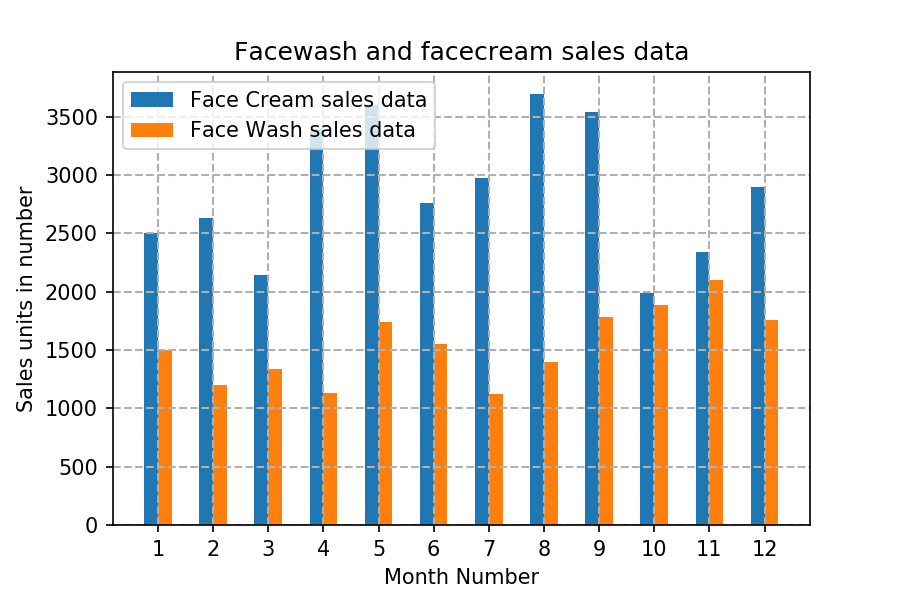
Matplotlib Exercise 5: Read face cream and facewash product sales data and show it using the bar chart
Show Solution
import pandas as pd
import matplotlib.pyplot as plt  

df = pd.read_csv("D:\\Python\\Articles\\matplotlib\\sales_data.csv")
monthList  = df ['month_number'].tolist()
faceCremSalesData   = df ['facecream'].tolist()
faceWashSalesData   = df ['facewash'].tolist()

plt.bar([a-0.25 for a in monthList], faceCremSalesData, width= 0.25, label = 'Face Cream sales data', align='edge')
plt.bar([a+0.25 for a in monthList], faceWashSalesData, width= -0.25, label = 'Face Wash sales data', align='edge')
plt.xlabel('Month Number')
plt.ylabel('Sales units in number')
plt.legend(loc='upper left')
plt.title(' Sales data')

plt.xticks(monthList)
plt.grid(True, linewidth= 1, linestyle="--")
plt.title('Facewash and facecream sales data')
plt.show()Code language: Python (python)

Exercise 6: Read sales data of bathing soap of all months and show it using a bar chart. Save this plot to your hard disk

The bar chart should look like this.
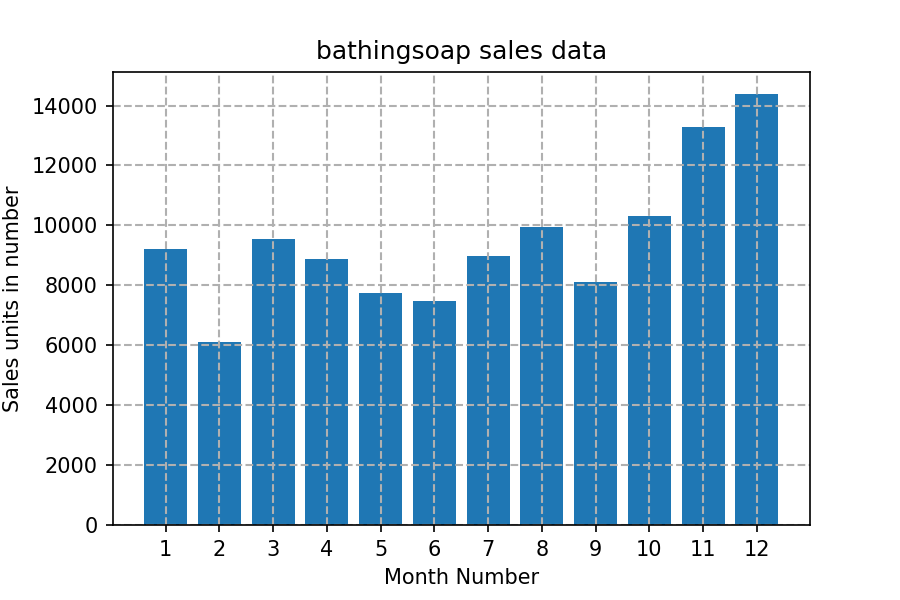
Matplotlib Exercise 6: Read sales data of bathing soap of all months and show it using a bar chart. Save this plot to your hard disk
Show Solution
import pandas as pd
import matplotlib.pyplot as plt  

df = pd.read_csv("D:\\Python\\Articles\\matplotlib\\sales_data.csv")
monthList  = df ['month_number'].tolist()
bathingsoapSalesData   = df ['bathingsoap'].tolist()
plt.bar(monthList, bathingsoapSalesData)
plt.xlabel('Month Number')
plt.ylabel('Sales units in number')
plt.title(' Sales data')
plt.xticks(monthList)
plt.grid(True, linewidth= 1, linestyle="--")
plt.title('bathingsoap sales data')
plt.savefig('D:\Python\Articles\matplotlib\sales_data_of_bathingsoap.png', dpi=150)
plt.show()Code language: Python (python)

Exercise 7: Read the total profit of each month and show it using the histogram to see the most common profit ranges

The histogram should look like this.
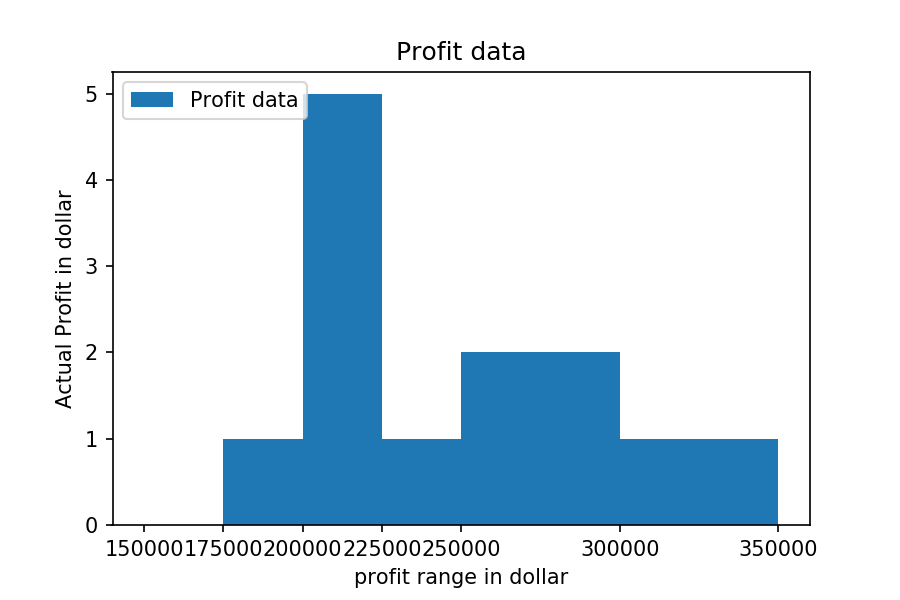
Matplotlib Exercise 7: Read the total profit of each month and show it using the histogram to see most common profit ranges
Show Solution
import pandas as pd
import matplotlib.pyplot as plt  

df = pd.read_csv("D:\\Python\\Articles\\matplotlib\\sales_data.csv")
profitList = df ['total_profit'].tolist()
labels = ['low', 'average', 'Good', 'Best']
profit_range = [150000, 175000, 200000, 225000, 250000, 300000, 350000]
plt.hist(profitList, profit_range, label = 'Profit data')
plt.xlabel('profit range in dollar')
plt.ylabel('Actual Profit in dollar')
plt.legend(loc='upper left')
plt.xticks(profit_range)
plt.title('Profit data')
plt.show()Code language: Python (python)

Exercise 8: Calculate total sale data for last year for each product and show it using a Pie chart

Note: In Pie chart display Number of units sold per year for each product in percentage.

The Pie chart should look like this.
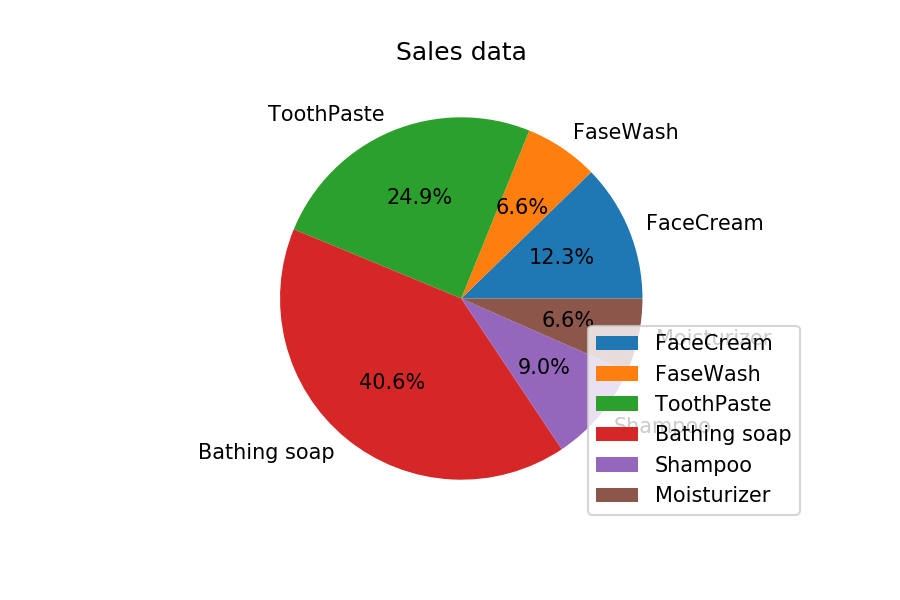
Matplotlib Exercise 8: Calculate total sale data for last year for each product and show it using a Pie chart
Show Solution
import pandas as pd
import matplotlib.pyplot as plt  

df = pd.read_csv("D:\\Python\\Articles\\matplotlib\\sales_data.csv")
monthList  = df ['month_number'].tolist()

labels = ['FaceCream', 'FaseWash', 'ToothPaste', 'Bathing soap', 'Shampoo', 'Moisturizer']
salesData   = [df ['facecream'].sum(), df ['facewash'].sum(), df ['toothpaste'].sum(), 
         df ['bathingsoap'].sum(), df ['shampoo'].sum(), df ['moisturizer'].sum()]
plt.axis("equal")
plt.pie(salesData, labels=labels, autopct='%1.1f%%')
plt.legend(loc='lower right')
plt.title('Sales data')
plt.show()Code language: Python (python)

Exercise 9: Read Bathing soap facewash of all months and display it using the Subplot

The Subplot should look like this.
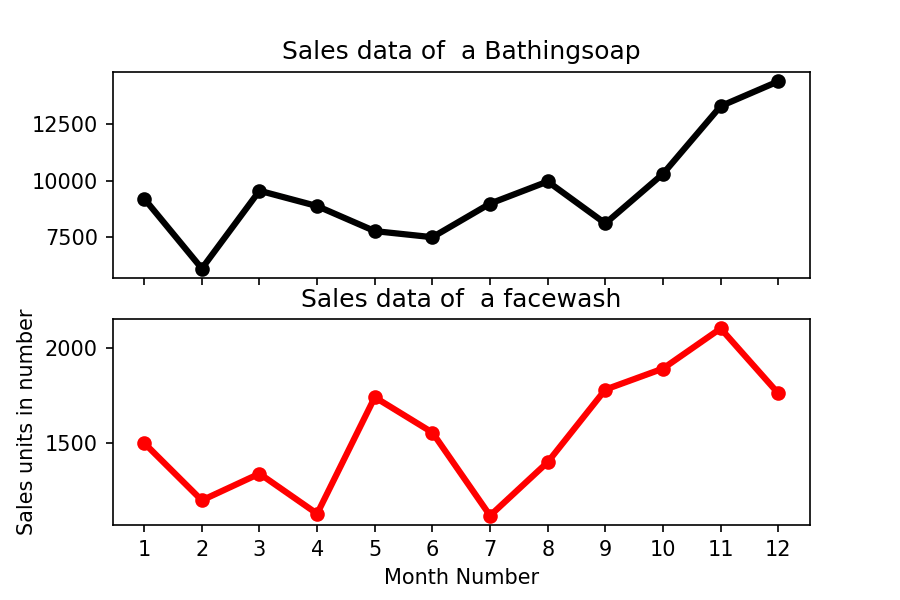
Matplotlib Exercise 9: Read Bathing soap facewash of all months and display it using the Subplot
Show Solution
import pandas as pd
import matplotlib.pyplot as plt  

df = pd.read_csv("D:\\Python\\Articles\\matplotlib\\sales_data.csv")
monthList  = df ['month_number'].tolist()
bathingsoap   = df ['bathingsoap'].tolist()
faceWashSalesData   = df ['facewash'].tolist()

f, axarr = plt.subplots(2, sharex=True)
axarr[0].plot(monthList, bathingsoap, label = 'Bathingsoap Sales Data', color='k', marker='o', linewidth=3)
axarr[0].set_title('Sales data of  a Bathingsoap')
axarr[1].plot(monthList, faceWashSalesData, label = 'Face Wash Sales Data', color='r', marker='o', linewidth=3)
axarr[1].set_title('Sales data of  a facewash')

plt.xticks(monthList)
plt.xlabel('Month Number')
plt.ylabel('Sales units in number')
plt.show()Code language: Python (python)

Exercise Question 10: Read all product sales data and show it using the stack plot

The Stack plot should look like this.
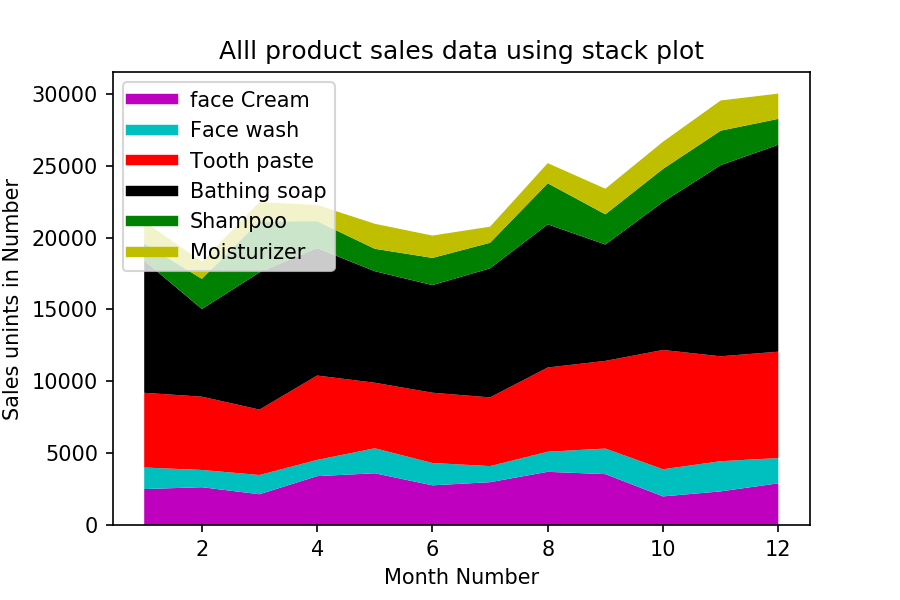
Matplotlib Exercise 10: Read all product sales data and show it using the stack plot
Show Solution
import pandas as pd
import matplotlib.pyplot as plt  

df = pd.read_csv("D:\\Python\\Articles\\matplotlib\\sales_data.csv")
monthList  = df ['month_number'].tolist()

faceCremSalesData   = df ['facecream'].tolist()
faceWashSalesData   = df ['facewash'].tolist()
toothPasteSalesData = df ['toothpaste'].tolist()
bathingsoapSalesData   = df ['bathingsoap'].tolist()
shampooSalesData   = df ['shampoo'].tolist()
moisturizerSalesData = df ['moisturizer'].tolist()

plt.plot([],[],color='m', label='face Cream', linewidth=5)
plt.plot([],[],color='c', label='Face wash', linewidth=5)
plt.plot([],[],color='r', label='Tooth paste', linewidth=5)
plt.plot([],[],color='k', label='Bathing soap', linewidth=5)
plt.plot([],[],color='g', label='Shampoo', linewidth=5)
plt.plot([],[],color='y', label='Moisturizer', linewidth=5)

plt.stackplot(monthList, faceCremSalesData, faceWashSalesData, toothPasteSalesData, 
              bathingsoapSalesData, shampooSalesData, moisturizerSalesData, 
              colors=['m','c','r','k','g','y'])

plt.xlabel('Month Number')
plt.ylabel('Sales unints in Number')
plt.title('Alll product sales data using stack plot')
plt.legend(loc='upper left')
plt.show()Code language: Python (python)

Filed Under: Python, Python Exercises

Did you find this page helpful? Let others know about it. Sharing helps me continue to create free Python resources.

TweetF  sharein  shareP  Pin

About Vishal

I’m Vishal Hule, the Founder of PYnative.com. As a Python developer, I enjoy assisting students, developers, and learners. Follow me on Twitter.

Related Tutorial Topics:

Python Python Exercises

All Coding Exercises:

C Exercises
C++ Exercises
Python Exercises

Python Exercises and Quizzes

Free coding exercises and quizzes cover Python basics, data structure, data analytics, and more.

  • 15+ Topic-specific Exercises and Quizzes
  • Each Exercise contains 25+ questions
  • Each Quiz contains 25 MCQ
Exercises
Quizzes

Comments

  1. MONA KASHYAP says

    February 4, 2025 at 10:06 pm

    Hey in matplot part i am not able to change the colour of the image as it’s showing error with no such file as jpg is found kindly help.

    Reply
  2. Gourav Nandy says

    September 11, 2024 at 3:41 pm

    Hey Vishal,

    Its a great work you have done here and thank you for sharing this exercises for the community.
    In q3 I just made a small change by reducing the number of code lines :

    x = df[‘month_number’].to_list()
    r = len(df.columns) – 2
    for i in range(1,r):
    plt.plot(x,df[df.columns[i]], marker = ‘o’, linewidth = 3, label = df.columns[i])
    plt.xticks(x)
    plt.xlabel(‘Months’)
    plt.ylabel(‘Units Sold’)
    plt.legend()
    plt.show()

    Reply
  3. Zainab says

    July 9, 2023 at 7:00 pm

    When you are adding detailed tutorials for Matplotlib as well?

    Reply
  4. James says

    August 6, 2022 at 7:56 pm

    I’m having a hard time applying what i learned in the loop exercises to matplotlib. Is it possible to set an exercise that produces say 10 graphs from df using a for loop?

    Reply
  5. Sharmili Moitra says

    April 21, 2022 at 11:17 am

    Hello,I have a question.How can I add value labels in Exercise 5?

    Reply
  6. Priya Arvind Singh Sengar says

    April 6, 2022 at 3:43 am

    Hi Vishal…

    Hats off to you you have done a wonderful job by creating these exercises …it’s not only useful for those who are students but also for those who are working…

    Reply
  7. Abhishek Bibhar says

    October 1, 2021 at 6:36 pm

    Hii its awesome and it helped me so much.Is there any link where i can get the same answers in plotly instead of matplotlib

    Reply
  8. Usman Abbasi says

    April 7, 2021 at 11:27 am

    Thanks bro, its really helped me in practicing matplotlib……..

    Reply
  9. yogita says

    December 22, 2020 at 7:09 pm

    How to smoothen stack plot? same graph but It should be curvey. please help

    Reply
  10. saurabh Hore says

    June 12, 2020 at 3:16 pm

    it definitely gives a great platform for students to practice. pls include box plot also

    Reply
  11. Devin says

    May 13, 2020 at 9:58 pm

    In Problem number 2 I found a couple of errors. One the moisturizer data is the same as Face wash. I am not sure if they are supposed to be the same thing but it over writes the face wash data on the plot. The other is the label on the the plots is ‘Toothpaste’ when it should be others just a copy and paste error.

    I found these problems very helpful! Thank you.

    Reply
  12. Navya Jonnagadala says

    April 30, 2020 at 6:35 pm

    have a doubt regarding pie chart . “Pie chart display Number of units sold per year for each product in percentage”.what if there are more(2000) products then how do we name the labels whith-out naming them individually

    Reply
  13. Bhatnagar, G K says

    April 1, 2020 at 9:36 pm

    I have downloaded the CSV file. But this file is not getting converted to DataFrame format – giving the following error message:
    ” SyntaxError: (unicode error) ‘unicodeescape’ codec can’t decode bytes in position 2-3: truncated \UXXXXXXXX escape”

    Can you advise how to overcome it?

    Reply
    • Vishal says

      April 3, 2020 at 8:51 pm

      Can you please try to solve using this StackOverflow link. Let me if it helps you

      Reply
    • Parag says

      April 5, 2020 at 7:02 pm

      It is because You must be accessing it with the path that contains “C:\Users….”. Here \U creates difficulty. You should put r before the path So that it path is read as raw string.
      Example: pd.read_csv(r"Your Path")

      Reply
  14. Vishnu says

    February 19, 2020 at 10:31 pm

    Hi Vishal,
    These are very good exercises to learn python,
    Thank you providing these exercises.

    Reply
    • Vishal says

      February 21, 2020 at 11:00 am

      Thank you, Vishnu

      Reply
  15. Nelson says

    August 12, 2019 at 4:07 am

    Excelent place to learn everything in Python . Congratulations!!!

    Reply
    • Vishal says

      August 12, 2019 at 6:47 am

      Thank you Nelson

      Reply
  16. Lakshmi Yapa says

    July 5, 2019 at 6:43 am

    Could you please explain autopct=’%1.1f%%’ in q8?
    Also how to use various brackets? im confused. I mean how do u know [] or () come to which places?

    Reply
    • Vishal says

      July 9, 2019 at 8:40 am

      Hi Lakshmi Yapa, autopct enables you to display the percent value using Python string formatting. For example, if autopct=’%.2f’, then for each pie wedge, the format string is ‘%.2f’ and the numerical percent value for that wedge is pct, so the wedge label is set to the string ‘%.2f’%pct.

      To add percentages to each of the constitutents of the pie chart, we add in the line, autopct=’%1.1f%%’, to the plt.pie() function.

      This formats the percentage to the tenth place.

      If you want to format the percentage to the hundredths place, you would use the statement, autopct=’%1.2f%%’

      If you want to format the percentage to the thousandths place, you would use the statement, autopct=’%1.3f%%’

      Reply
  17. Nick says

    July 3, 2019 at 12:57 pm

    HI Vishal,

    I just wanted to thank you for this great lessons. Keep it up. I love the way u r coding.

    Just 1 request.
    Could you please add some comments to the difficult point in the solutions?
    it would be so much helpful to the beginners like me.
    Thanks

    Reply
    • Vishal says

      July 4, 2019 at 7:13 am

      Thank you. I will modify it and add comments to a difficult point in the solutions.

      Reply
  18. Gopal Sharma says

    July 1, 2019 at 3:56 pm

    Very good practice opportunity….very well programmed

    Reply
    • Vishal says

      July 1, 2019 at 8:10 pm

      I am gald you liked it.

      Reply

Leave a Reply Cancel reply

your email address will NOT be published. all comments are moderated according to our comment policy.

Use <pre> tag for posting code. E.g. <pre> Your entire code </pre>

In: Python Python Exercises
TweetF  sharein  shareP  Pin

  Python Exercises

  • All Python Exercises
  • Basic Exercises for Beginners
  • Loop Exercises
  • Intermediate Python Exercises
  • Input and Output Exercises
  • Functions Exercises
  • String Exercises
  • List Exercises
  • Dictionary Exercises
  • Set Exercises
  • Tuple Exercises
  • Data Structure Exercises
  • Comprehensions Exercises
  • Collections Module Exercises
  • Date and Time Exercises
  • OOP Exercises
  • Exception Handling Exercises
  • Math and Statistics Exercises
  • File Handling Exercises
  • OS and Sys Module Exercises
  • Regex Exercises
  • Lambda & Functional Programming Exercises
  • Iterators & Generators Exercises
  • Itertools & Functools Exercises
  • Random Data Generation Exercises
  • NumPy Exercises
  • Pandas Exercises
  • Matplotlib Exercises
  • Python Database Exercises
  • Python JSON Exercises

 Explore Python

  • Python Tutorials
  • Python Exercises
  • Python Quizzes
  • Python Interview Q&A
  • Python Programs

All Python Topics

Python Basics Python Exercises Python Quizzes Python Interview Python File Handling Python OOP Python Date and Time Python Random Python Regex Python Pandas Python Databases Python MySQL Python PostgreSQL Python SQLite Python JSON

About PYnative

PYnative.com is for Python lovers. Here, You can get Tutorials, Exercises, and Quizzes to practice and improve your Python skills.

Follow Us

To get New Python Tutorials, Exercises, and Quizzes

  • Twitter
  • Facebook
  • Sitemap

Explore Python

  • Learn Python
  • Python Basics
  • Python Databases
  • Python Exercises
  • Python Quizzes
  • Online Python Code Editor
  • Python Tricks

Coding Exercises

  • C Exercises
  • C++ Exercises
  • Python Exercises

Legal Stuff

  • About Us
  • Contact Us

We use cookies to improve your experience. While using PYnative, you agree to have read and accepted our:

  • Terms Of Use
  • Privacy Policy
  • Cookie Policy

Copyright © 2018–2026 pynative.com