How to Set Up Automatic Updates on Linux (Keep Your System Safe)
When you’ve got Raspberry Pis or Linux servers running all over the place, it’s way too easy to forget about updates. I’ve been there. But skipping them doesn’t just mean missing new features. It can leave the door wide open for security issues. Here’s how I set everything up to avoid that.
Automatic updates can be enabled on most Linux systems to ensure that important security patches and software upgrades are installed regularly. This helps prevent vulnerabilities from being left unpatched.
Here we’ll look at why automatic updates matter, when you should (or shouldn’t) enable them, and how to set them up on different Linux distributions.
If you need help with Linux, I’ve got something that can help you right away!
Download my free Linux commands cheat sheet – it’s a quick reference guide with all the essential commands you’ll need to get things done on your system. Click here to get it for free!
Why Do Automatic Updates Matter?
Most Linux systems don’t automatically update by default. This is great for developers who prefer control, but it’s not ideal for systems left running unattended, such as home servers, Raspberry Pi projects, or small business VPSs.
Over time, unpatched systems become outdated. For example, a Raspberry Pi installed two years ago might be missing hundreds of fixes, including those for essential tools like OpenSSH, sudo, and systemd.
Automatic updates ensure that your system receives new security patches as soon as they are released. This is especially important for servers and IoT devices that stay online 24/7. You don’t want to be woken up by those annoying tasks.
There was once a time that I checked a small server that hadn’t been updated in months (maybe even years). More than 400 package upgrades were waiting, including kernel vulnerabilities and SSL patches. Don’t let that happen to your setup.
Pros and Cons of Automatic Updates
Now, you surely want to enable them right away, but before you do, it’s important to understand the trade-offs. They’re convenient, but not always ideal for every use case.
✅ Pros
- Peace of mind: Security fixes are applied without you doing anything.
- Perfect for headless systems: Great for Raspberry Pi, home servers, or remote Linux machines.
- Reduces maintenance: You won’t forget to update critical packages.
- Improved security: Kernel and system vulnerabilities are fixed quickly.
❌ Cons
- Bad timing: If updates run while you’re using the system, they might slow things down.
- Risk of breaking things: Some updates might cause compatibility issues or service downtime.
- Reboots required: Kernel or systemd updates might need a restart.
- Less control: You won’t review changes before they’re installed.
Note: For production or mission-critical servers, it’s best to enable automatic security updates instead of full upgrades. This minimizes the risk of unexpected changes or service disruptions while keeping the system protected.
Something not working? Don't waste hours going in circles. Ask in the RaspberryTips Community and get help from people who've already figured it out. Get unstuck now.
How to Enable Automatic Updates on Linux
Now, let’s go through how to enable automatic updates on different distributions. Each system has its own tools, but they all serve the same purpose: keeping your software current without manual input.
You can get answers from real experts in minutes.
Get help with your setup
Debian / Ubuntu / Raspberry Pi OS (unattended-upgrades)
On Debian-based systems (including Ubuntu and Raspberry Pi OS), the easiest way to handle updates automatically is using Unattended-Upgrades along with APT. And it is often already by default installed on systems like Ubuntu.
But, if it doesn’t come with your distribution, the first step would be to install the package:sudo apt updatesudo apt install unattended-upgrades
Bonus tip: At some point, you’ll get tired of copying commands without really understanding them. I put together a cheat sheet with 74 essential commands and simple examples. Grab the file here (free).
If you’re tired of copy/pasting commands without really understanding them, this book will help you finally feel confident in the Linux terminal.
Improve your Linux skillsAfter that, you can enable automatic updates by doing:sudo dpkg-reconfigure --priority=low unattended-upgrades
This will configure your system to automatically install updates in the background.
You can also tweak /etc/apt/apt.conf.d/50unattended-upgrades to include only security patches if you prefer.
You might also like: The 5 fastest web browsers for Raspberry Pi — tested and ranked!
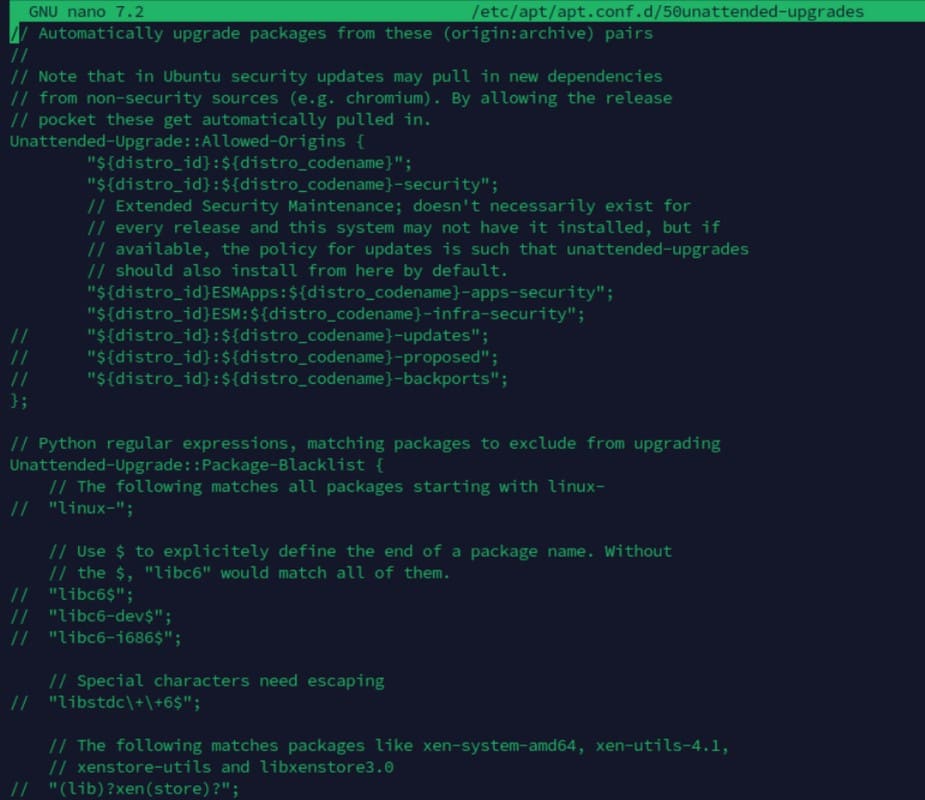
You can even add automatic reboot for critical updates by editing the /etc/apt/apt.conf.d/20auto-upgrades.
Tip: Command lines can be a pain to memorize. I put the essential Linux commands on a printable cheat sheet so you don't have to keep googling them. You can grab the PDF here if you want to save some time.
Fedora / CentOS / RHEL (dnf-automatic)
On the other hand, when you’re using any RHEL-based systems, automatic updates are handled by a different tool called dnf-automatic.
For instance, this section applies if you’re running Fedora, CentOS, Rocky Linux, or Alma Linux.
First, you’ll have to install the tool:sudo dnf install dnf-automatic
And also, enabled the timer service:sudo systemctl enable dnf-automatic.timer

This enables the system to automatically upgrade using the systemd timer in the background.
After doing it, you can configure it by editing the config file:sudo nano /etc/dnf/automatic.conf

Inside this file, you’ll find options to control what kind of updates are applied (download vs install), which packages are affected, whether reboots are allowed, and where logs are stored. For example, to enable automatic installation of updates, set:apply_updates = yes
You can also schedule email notifications or define specific timers. Once configured, your Fedora-based system will handle updates in the background without further input.
Generic Solution (crontab)
Now, what happens if your distributions don’t include built-in tools? Well in that case, you can use a small bash script with cron or a systemd timer that works perfectly.
Bonus tip: At some point, you’ll get tired of copying commands without really understanding them. I put together a cheat sheet with 74 essential commands and simple examples. Grab the file here (free).
Note: This approach isn’t recommended for rolling-release distributions like Arch Linux, where frequent updates can introduce breaking changes. Manual review is generally safer on those systems.
In this case, we will need to create an updated bash script first:sudo nano /usr/local/bin/auto-update.sh

And add this:
You might also like: I tried to replace my main PC with a Pi 5, here's what happened.
#!/bin/bash
apt update && apt upgrade -y && apt autoremove -y
Then make it executable:sudo chmod +x /usr/local/bin/auto-update.sh
After it works flawlessly, you can add it directly as a cron job:sudo crontab -e

And then add:0 2 * * * /usr/local/bin/auto-update.sh >> /var/log/auto-update.log 2>&1
This will update your system every night at 2 AM and log the results.
Note: This can be adapted for other package managers, such as DNF, Zypper, or Pacman, by replacing the command.
If you’re unfamiliar with how to run scripts at startup or on a schedule, this guide on how to run programs on startup could be useful for you.
Automatic updates are one of the simplest ways to keep your Linux system safe, especially for headless devices, Raspberry Pi setups, or unattended servers. They won’t replace regular maintenance, but they can protect you from known vulnerabilities without lifting a finger.
But if you prefer more control, limit them to security updates or schedule your own cron jobs. Either way, don’t let your system go months without patches.
Not getting the same result?
Even when you follow every step, small differences in OS version, hardware or config can change the outcome. Instead of wasting time guessing, get help from people who have already fixed the same kind of issue.
- Get help on your exact issue
- Access step-by-step videos for tricky setups
- Browse the website without ads