
How To Install the Latest Python Version on Raspberry Pi?
Raspberry Pi and Python work well together, and Python comes pre-installed on your Raspberry Pi OS. But as often with computers and programming, it’s not always that simple. In this article, I’ll tell and show you everything you need to know about the Python versions on your Raspberry Pi.
The only way to install the latest Python version on Raspberry Pi OS is to download it from the official website and install it from sources. Raspberry Pi OS repositories are generally late from a few versions.
As always, I’m doing this on my Raspberry Pi, so you won’t have to face bugs and errors yourself. Follow my recommendations below and everything should work on the first try!
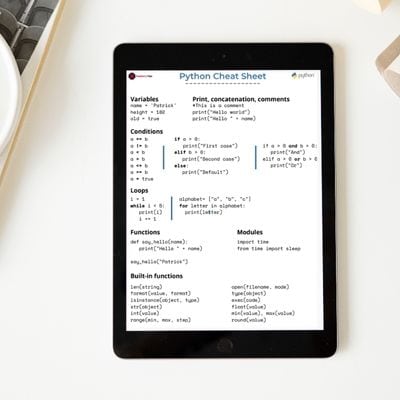
If you’re like me and sometimes mix up syntax between programming languages, I’ve got just the thing for you. I’ve put together a Python cheat sheet with all the essential syntax in one place, so you can keep it handy and avoid any confusion. Download it here for free!
How to Know Which Python Version Is Installed
To find the exact version number, use the command line “python –version” or “python3 –version”.

Warning: these commands may not return the same value if you have multiple versions installed (as was the case with Raspberry Pi OS Bullseye and earlier).
It can be a little disturbing, but yes, there were two versions already installed on your Pi. When you used the command “python” to run a script, you were running it with Python 2. And the “python3” command did the same thing with version 3.
The exact version depends on the latest one available in the Raspberry Pi OS repository. In most cases, with Debian based distribution, these versions are a bit dated. At the time of writing, Python 3.11.2 is two years old, and it’s the one pre-installed on Raspberry Pi OS.
By the way, if it is unclear to you why Python is used on Raspberry Pi, you should click on that link to know everything about it.
Find the Latest Python Version Available
The easiest way to find the latest Python release available is to go to the official Python website. On the download page, the latest versions are listed with their release date and maintenance status.
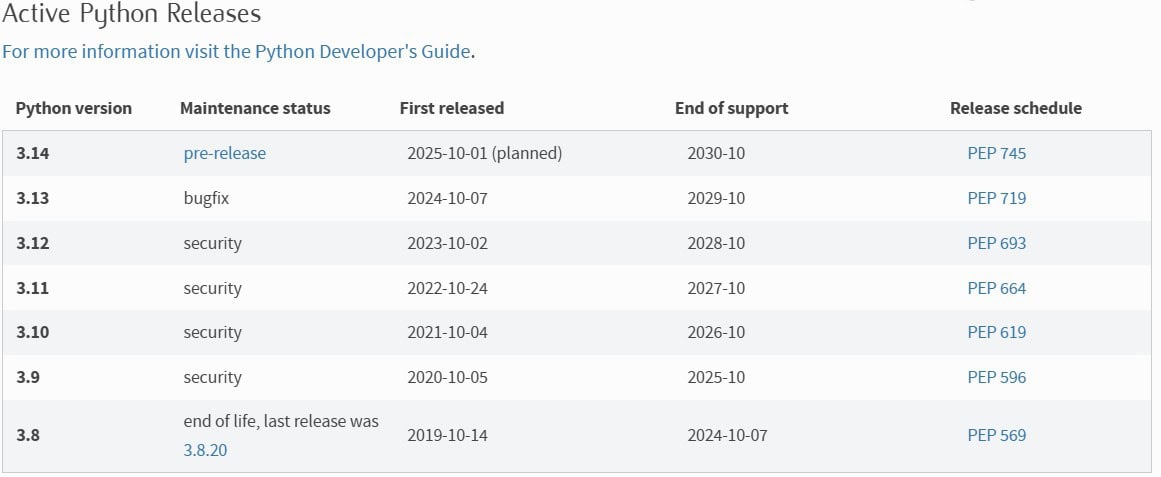
This first table gives you an overview of the latest Pythons versions. As you can see on the Download page, the Python 3.11 that’s running on my system was released back in 2022. In the next section, we’ll learn how to update it on your Raspberry Pi.
Bonus tip: : Instead of Googling syntax every time, I keep a small cheat sheet with the main Python elements. Check it here.

Want to build real Raspberry Pi projects with Python? This book starts from scratch and guides you toward practical scripts, automation, APIs, cameras and more.
Learn Python on Raspberry PiYou can get answers from real experts in minutes.
Get help with your setup
Install the Latest Python Version on Raspberry Pi
As Raspberry Pi OS is always a few Python versions behind, the only way to install the latest Python version on your Raspberry Pi is to download the source code from the official website and install it manually:
- Step 1: Download the latest version of Python from the official website.
- Step 2: Extract the files on the Raspberry Pi.
- Step 3: Configure the system to use the latest Python version.
Let’s see how to do this.
Download and Extract the Latest Python Version
- Go to the Python download page.
- Scroll down to the second table on that page to Looking for a specific release?
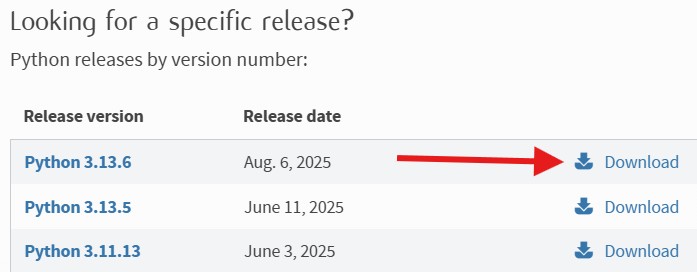
- Click Download on the link corresponding to the version you want.
In my case, I will install Python 3.13.6. - Scroll to the bottom of the next page, and find the list of download links:
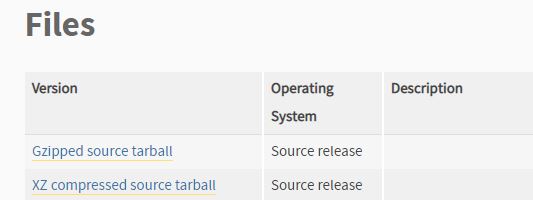
- Right-click on Gzipped source tarball and choose Copy link address from your browser context menu.
For the following, you need to open a terminal on Raspberry Pi OS, or connect via SSH to type a few commands. If you need help with the SSH part, you can read my tutorial here which has all the information you might need.
- Download the latest Python file with wget
The syntax is:wget <url>
Replace the URL with the link you copied from the previous step. For example:wget https://www.python.org/ftp/python/3.13.6/Python-3.13.6.tgz
Related: How to Download Files on Linux Using Terminal - Extract the files with:
tar zxvf Python-3.13.6.tgz
Change the Python version if you downloaded a different one.tar zxvf <filename>
Related: How To Use the Tar Command on Linux: A Complete Guide
Tip: Command lines can be a pain to memorize. I put the essential Linux commands on a printable cheat sheet so you don't have to keep googling them. You can grab the PDF here if you want to save some time.
Configure and Install Python Latest Version
Now we need to compile the source code to install this Python version on your Raspberry Pi:
- Move to the folder containing the extracted files:
cd Python-3.13.6 - Run the configuration command:
./configure --enable-optimizations
As Python is already installed on your Raspberry Pi, it should work directly. But if you have an error, you probably need to install or update the missing components (use APT to fix any error).
- After it’s done configuring, run this command to install it:
sudo make altinstall
This may take some time depending on your Raspberry Pi model and version (at least 15 minutes on Raspberry Pi 4/5 with Bookworm).
Make Python 3 the Default Version on Raspberry Pi OS
Each installed version of Python on your system adds a new executable in /usr/local/bin that you can use to run a program. For example, in my case I now have:
- python3 — The default Python 3 version.
- python3.11 — If I want to run a script with the version from the repository.
- python3.13 — The one I just installed from sources.
But when I use “python –version”, it shows that I’m still using Python 3.11.
To choose a different Python version to run, you have two choices:
- Specify the exact version of Python you want to use in the command line.
For example:python3.13 myscript.py
This is probably the safest option if you regularly switch from one version to another. - Or, replace the link in your /usr/local/bin folder to point to the version you want to use by default (more details here).
To give you an idea of the problem, here’s what it looks like on my Raspberry Pi currently:

So basically, it will still use Python 3.11 no matter what command I use. Python 3.13 is available under /usr/local/bin, but not under /usr/bin yet.
Here’s how to change this linkage to use the newer version you’ve just installed:
- Go to /usr/bin:
cd /usr/bin - Remove the current link:
sudo rm python - Link the version you intend to use instead:
sudo ln -s /usr/local/bin/python3.13 python - Check that everything is fine:
python --versionIt should now display the version you just installed (3.13.6 for me).

Note: If you’re using Thonny to code in Python, it uses “/usr/bin/python3” by default, which links to the default version installed by Raspberry Pi OS (3.11.2 in my case). If you want to use the newest Python version with Thonny, you have to update this link as well.
Update Python on Raspberry Pi
Bonus tip: : Instead of Googling syntax every time, I keep a small cheat sheet with the main Python elements. Check it here.
We have seen how to install a specific Python version on Raspberry Pi OS, but how to update it from there?
To update Python on Raspberry Pi, start by making sure your whole system is up-to-date:sudo apt update
sudo apt upgrade
Even if Raspberry Pi OS is always a few versions behind the latest Python version available, you can still get updates with apt, as for any other software on your device.
Once done, check the currently installed version with:python --version
python3 --version
If it doesn’t show the version you need to use, you will have to follow this tutorial from the beginning once again. Downloading the sources and compiling it for the desired version is the only solution each time you want to update, there isn’t a magic command to do it automatically.
And it’s important to know which version you are using when you install additional libraries for Python on your Raspberry Pi.
Still stuck after following this guide? Drop your question in the RaspberryTips Community — real Pi users answer fast. Post your question here.
Final Thoughts
I hope this post made how the Python versions work on Raspberry Pi clear for you. You now know that there are at least two versions installed and that you can easily switch between them by changing the command you use.
Also, make sure to install the modules related to the Python version you use (python-gpiozero and python3-gpiozero are two different packages). PIP also has two versions (pip and pip3). It can be misleading for beginners, but it’s really useful once you are used to.
Let me know in the community if you have any related question about Python on Raspberry Pi.
Meanwhile, feel free to check my other tutorials on Python on this website:
- How to Learn to Program in Python with a Raspberry Pi?
- How to program Minecraft with Python on a Raspberry Pi?
- How to Make a Discord Bot on Raspberry Pi? (Python easy method)
I also have a list of 15 projects with Python on Raspberry Pi that you can check if you need some inspiration.
Not getting the same result?
Even when you follow every step, small differences in OS version, hardware or config can change the outcome. Instead of wasting time guessing, get help from people who have already fixed the same kind of issue.
- Get help on your exact issue
- Access step-by-step videos for tricky setups
- Browse the website without ads



Thank you for buteaful tutorial
In my case I was still missing SSL module,
so I had to go back and install dependecies:
Thanks for the guide it worked without errors but after following all the steps i got the error in pip. I used pip3.7 to look at all the libraries pre installed and also to install the libraries required. I got the following error
pi@raspberrypi:/ $ pip3.7 list
Package Version
———- ——-
pip 19.0.3
setuptools 40.8.0
Traceback (most recent call last):
File “/usr/local/bin/pip3.7”, line 10, in <module>
sys.exit(main())
File “/usr/local/lib/python3.7/site-packages/pip/_internal/__init__.py”, line 78, in main
return command.main(cmd_args)
File “/usr/local/lib/python3.7/site-packages/pip/_internal/cli/base_command.py”, line 228, in main
timeout=min(5, options.timeout)
File “/usr/local/lib/python3.7/site-packages/pip/_internal/cli/base_command.py”, line 93, in _build_session
insecure_hosts=options.trusted_hosts,
File “/usr/local/lib/python3.7/site-packages/pip/_internal/download.py”, line 344, in __init__
self.headers[“User-Agent”] = user_agent()
File “/usr/local/lib/python3.7/site-packages/pip/_internal/download.py”, line 108, in user_agent
zip([“name”, “version”, “id”], distro.linux_distribution()),
File “/usr/local/lib/python3.7/site-packages/pip/_vendor/distro.py”, line 120, in linux_distribution
return _distro.linux_distribution(full_distribution_name)
File “/usr/local/lib/python3.7/site-packages/pip/_vendor/distro.py”, line 675, in linux_distribution
self.version(),
File “/usr/local/lib/python3.7/site-packages/pip/_vendor/distro.py”, line 735, in version
self.lsb_release_attr(‘release’),
File “/usr/local/lib/python3.7/site-packages/pip/_vendor/distro.py”, line 892, in lsb_release_attr
return self._lsb_release_info.get(attribute, ”)
File “/usr/local/lib/python3.7/site-packages/pip/_vendor/distro.py”, line 550, in __get__
ret = obj.__dict__[self._fname] = self._f(obj)
File “/usr/local/lib/python3.7/site-packages/pip/_vendor/distro.py”, line 998, in _lsb_release_info
stdout = subprocess.check_output(cmd, stderr=devnull)
File “/usr/local/lib/python3.7/subprocess.py”, line 395, in check_output
**kwargs).stdout
File “/usr/local/lib/python3.7/subprocess.py”, line 487, in run
output=stdout, stderr=stderr)
subprocess.CalledProcessError: Command ‘(‘lsb_release’, ‘-a’)’ returned non-zero exit status 1.
so what to do now please help!!!
And this the error I’m getting if I try to install a library
pi@raspberrypi:/ $ pip3.7 install numpy
Exception:
Traceback (most recent call last):
File “/usr/local/lib/python3.7/site-packages/pip/_internal/cli/base_command.py”, line 179, in main
status = self.run(options, args)
File “/usr/local/lib/python3.7/site-packages/pip/_internal/commands/install.py”, line 255, in run
with self._build_session(options) as session:
File “/usr/local/lib/python3.7/site-packages/pip/_internal/cli/base_command.py”, line 93, in _build_session
insecure_hosts=options.trusted_hosts,
File “/usr/local/lib/python3.7/site-packages/pip/_internal/download.py”, line 344, in __init__
self.headers[“User-Agent”] = user_agent()
File “/usr/local/lib/python3.7/site-packages/pip/_internal/download.py”, line 108, in user_agent
zip([“name”, “version”, “id”], distro.linux_distribution()),
File “/usr/local/lib/python3.7/site-packages/pip/_vendor/distro.py”, line 120, in linux_distribution
return _distro.linux_distribution(full_distribution_name)
File “/usr/local/lib/python3.7/site-packages/pip/_vendor/distro.py”, line 675, in linux_distribution
self.version(),
File “/usr/local/lib/python3.7/site-packages/pip/_vendor/distro.py”, line 735, in version
self.lsb_release_attr(‘release’),
File “/usr/local/lib/python3.7/site-packages/pip/_vendor/distro.py”, line 892, in lsb_release_attr
return self._lsb_release_info.get(attribute, ”)
File “/usr/local/lib/python3.7/site-packages/pip/_vendor/distro.py”, line 550, in __get__
ret = obj.__dict__[self._fname] = self._f(obj)
File “/usr/local/lib/python3.7/site-packages/pip/_vendor/distro.py”, line 998, in _lsb_release_info
stdout = subprocess.check_output(cmd, stderr=devnull)
File “/usr/local/lib/python3.7/subprocess.py”, line 395, in check_output
**kwargs).stdout
File “/usr/local/lib/python3.7/subprocess.py”, line 487, in run
output=stdout, stderr=stderr)
subprocess.CalledProcessError: Command ‘(‘lsb_release’, ‘-a’)’ returned non-zero exit status 1.
Traceback (most recent call last):
File “/usr/local/bin/pip3.7”, line 10, in <module>
sys.exit(main())
File “/usr/local/lib/python3.7/site-packages/pip/_internal/__init__.py”, line 78, in main
return command.main(cmd_args)
File “/usr/local/lib/python3.7/site-packages/pip/_internal/cli/base_command.py”, line 228, in main
timeout=min(5, options.timeout)
File “/usr/local/lib/python3.7/site-packages/pip/_internal/cli/base_command.py”, line 93, in _build_session
insecure_hosts=options.trusted_hosts,
File “/usr/local/lib/python3.7/site-packages/pip/_internal/download.py”, line 344, in __init__
self.headers[“User-Agent”] = user_agent()
File “/usr/local/lib/python3.7/site-packages/pip/_internal/download.py”, line 108, in user_agent
zip([“name”, “version”, “id”], distro.linux_distribution()),
File “/usr/local/lib/python3.7/site-packages/pip/_vendor/distro.py”, line 120, in linux_distribution
return _distro.linux_distribution(full_distribution_name)
File “/usr/local/lib/python3.7/site-packages/pip/_vendor/distro.py”, line 675, in linux_distribution
self.version(),
File “/usr/local/lib/python3.7/site-packages/pip/_vendor/distro.py”, line 735, in version
self.lsb_release_attr(‘release’),
File “/usr/local/lib/python3.7/site-packages/pip/_vendor/distro.py”, line 892, in lsb_release_attr
return self._lsb_release_info.get(attribute, ”)
File “/usr/local/lib/python3.7/site-packages/pip/_vendor/distro.py”, line 550, in __get__
ret = obj.__dict__[self._fname] = self._f(obj)
File “/usr/local/lib/python3.7/site-packages/pip/_vendor/distro.py”, line 998, in _lsb_release_info
stdout = subprocess.check_output(cmd, stderr=devnull)
File “/usr/local/lib/python3.7/subprocess.py”, line 395, in check_output
**kwargs).stdout
File “/usr/local/lib/python3.7/subprocess.py”, line 487, in run
output=stdout, stderr=stderr)
subprocess.CalledProcessError: Command ‘(‘lsb_release’, ‘-a’)’ returned non-zero exit status 1.
followed your steps and I was able to download the current version 3.10.6 and get the file but I cant get the system to install that version it says im still using 3.7.3. ~/Python-3.10.6 $ python3 –version
Python 3.7.3
You can use python3.10 instead of python3.
Or update the symbolic link for python3, something like that:
cd /usr/bin/sudo unlink python3
sudo ln -s /usr/bin/python3.10 python3
The easiest way is probably to uninstall Python 3.7 if you don’t need it anymore.